
Appearance
LMS Admin Features
This page shows important admin features related to the LMS.
Enroll a user into a course
To enroll a user into a course, you first would need to go to the User Course content type and click on Create new entry.
It is mandatory to select a course and a user, otherwise you will receive an error. After doing so, you can click Save and all relevant fields will be generated and saved. The first content (usually a lesson), will also be added to Lessons and is available to be completed for the user.
WARNING
Course prequisites and other checks will not be done when you manually enroll a user into a course this way.
Progress a user through a course
Progress one by one
Since the first content is aready unlocked and available after you enrolled the user into a course, you can click on it to see information about it. In general you go to the User Course content type and search for the User Course and go into it. A freshly enrolled one might look like this:
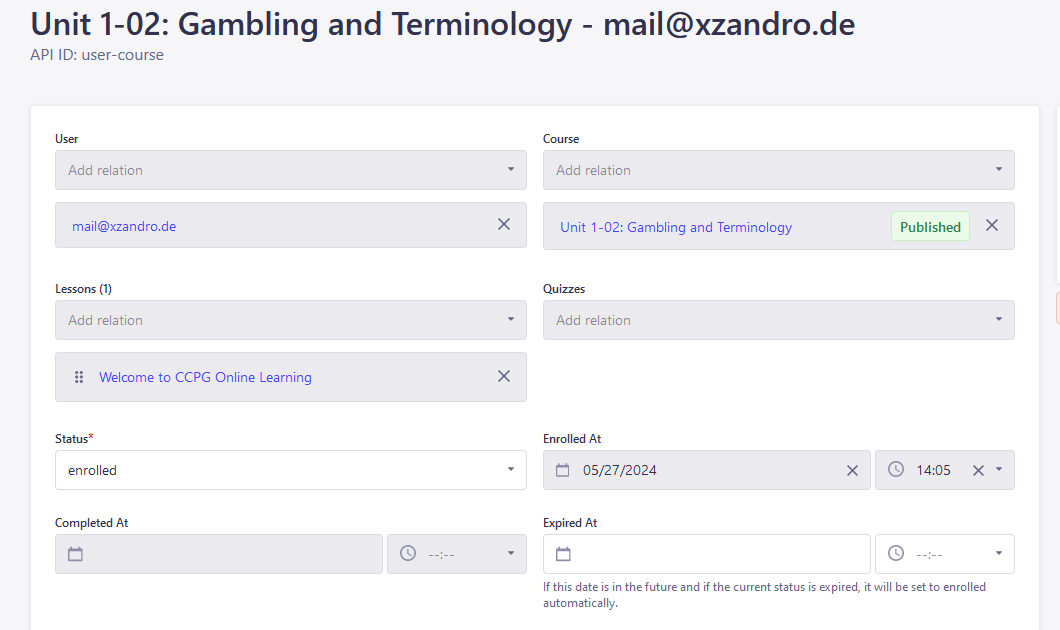
As you can see, in this example, the first content Welcome to CCPG Online Learningis already unlocked. Click on it to see it's information. To proceed the user, you just have to change the Status of the lesson/quiz to completed and click Save. Relevant fields will be generated again and the next lesson/quiz will be unlocked automatically again. Now, you can go back to the user User Course by just clicking on it. You will see that another lesson was added and the first one is now (Completed).
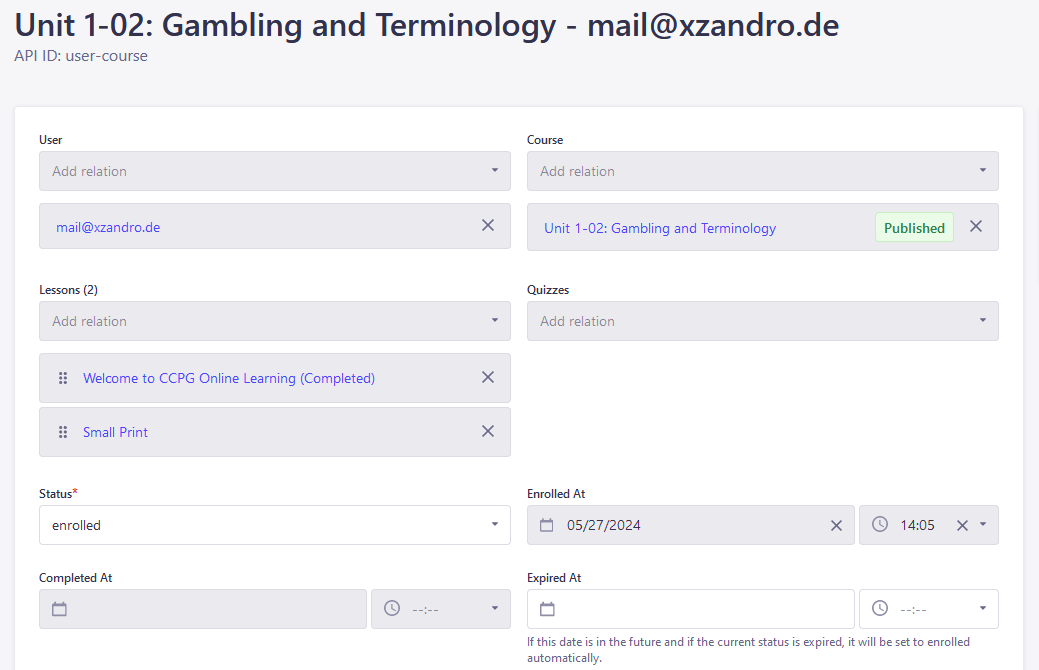
You can repeat this process until all lessons/quizzes are completed. If that is the case, the User Course itself will be completed and a certificate will be generated.
Progress through entire user course
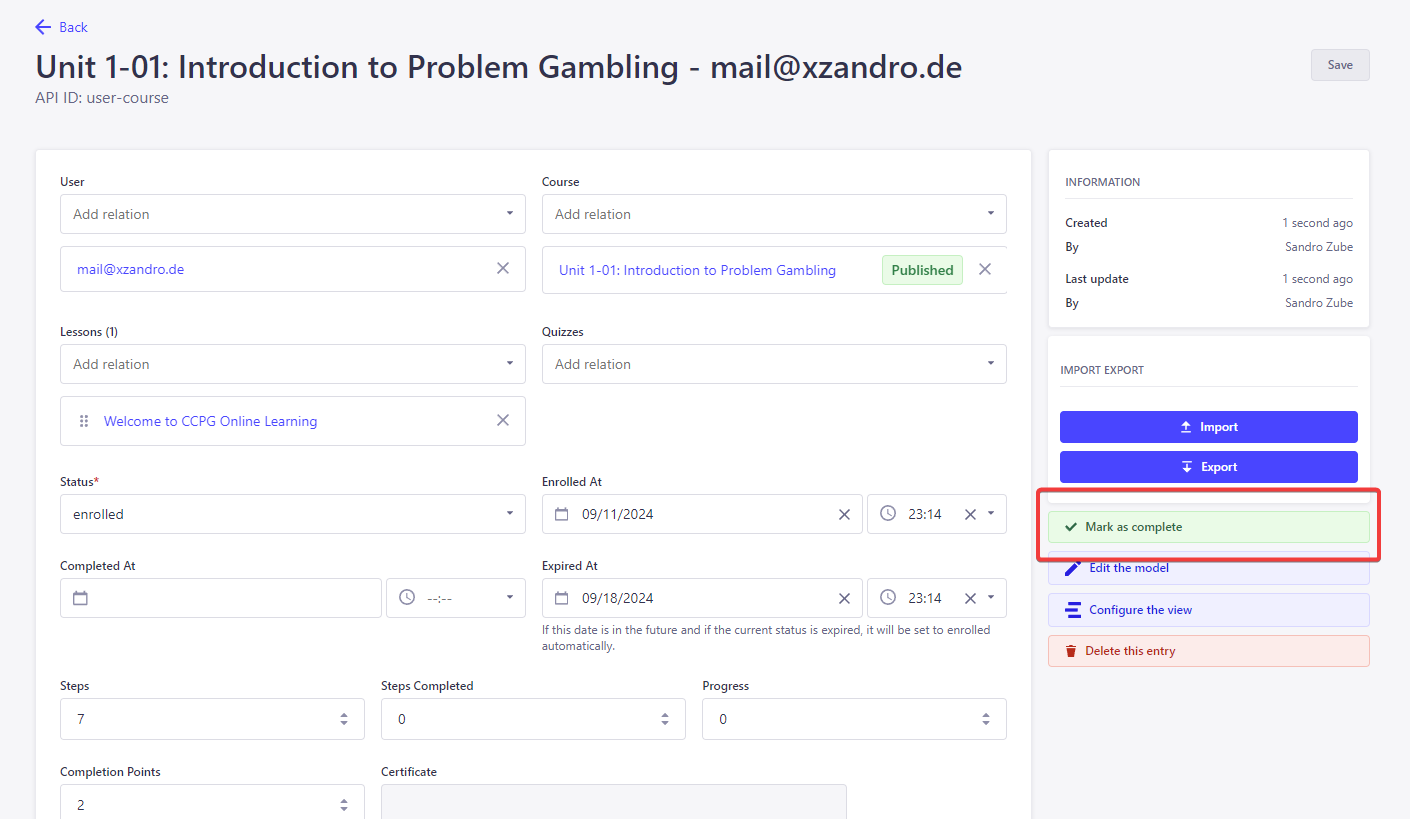
Go to the User Course content type and search for the User Course and go into it. There you will find a button on the right side bar labeled with "Mark as complete". After clicking on it, all lessons and quizzes/evaluations will be completed and a certificate is generated instantly.
Remove a course from a user
Go to the User Course content-type, search for the desired User Course and delete the entry.
TIP
If you delete a User Course the connected User Lessons and User Quizzes will be deleted automatically, so you do not have to worry doing so yourself.
Remove or reset quiz attempts
Go the the desired User Course content type and search for the User Course the User Quiz is in. Alternatively, you could also go to the User Quiz content type directly. There you will be able to see the user's quiz attempts and either remove all of them or a specific one. Click Save to apply the changes.
Extending an expired course
Go to the User Course content-type, search for the desired User Course. There, you will see a field called Expired At. If you set this date to a date in the future and click Save, the User Coure's Statuswill be automatically set from expired to enrolled.
INFO
The system will check for expired User Courses every full hour and will set User Courses to expired automatically if necessary.
Delist / unpublish courses
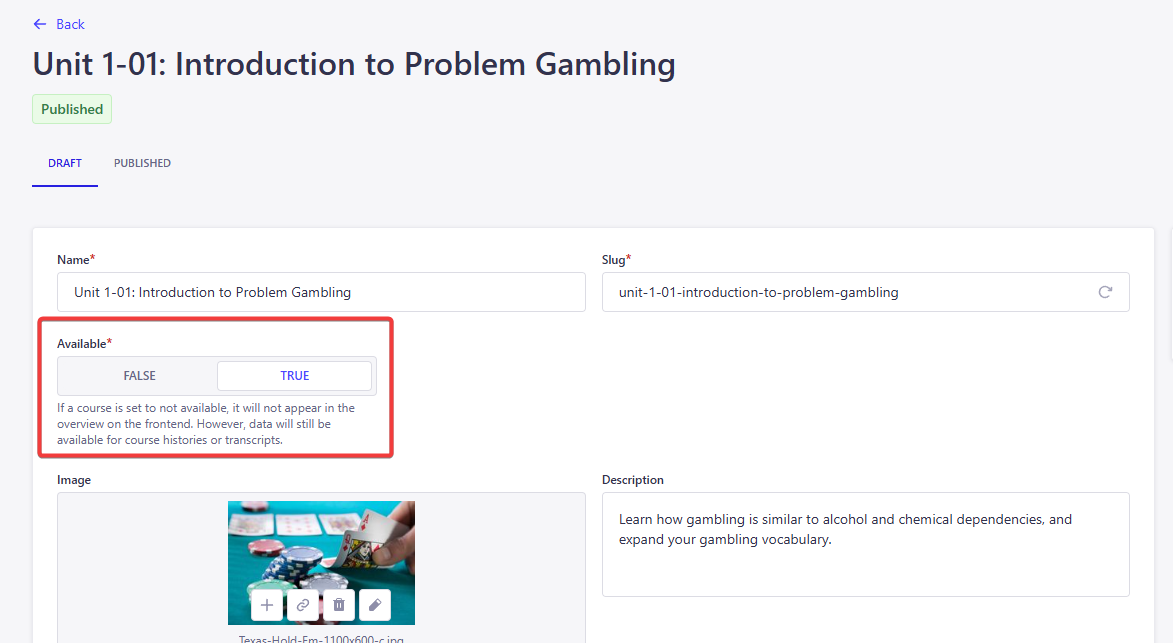
Every Course has a Available checkbox. By default this is set to on, so the course is available by default. To delist a course you can uncheck the Available checkbox. This makes the course unavailable on the website and users can not enroll or interact with the course anymore. However, the course's data is still available for course history data or transcripts.
WARNING
Please do not unpublish courses directly (via the Strapi unpublish functionality) when users already are enrolled to them or have them completed. The course's data will not be available anymore for course history data or transcripts.