
Appearance
LMS Content Types
This page demonstrates content types available for the LMS and what they do.
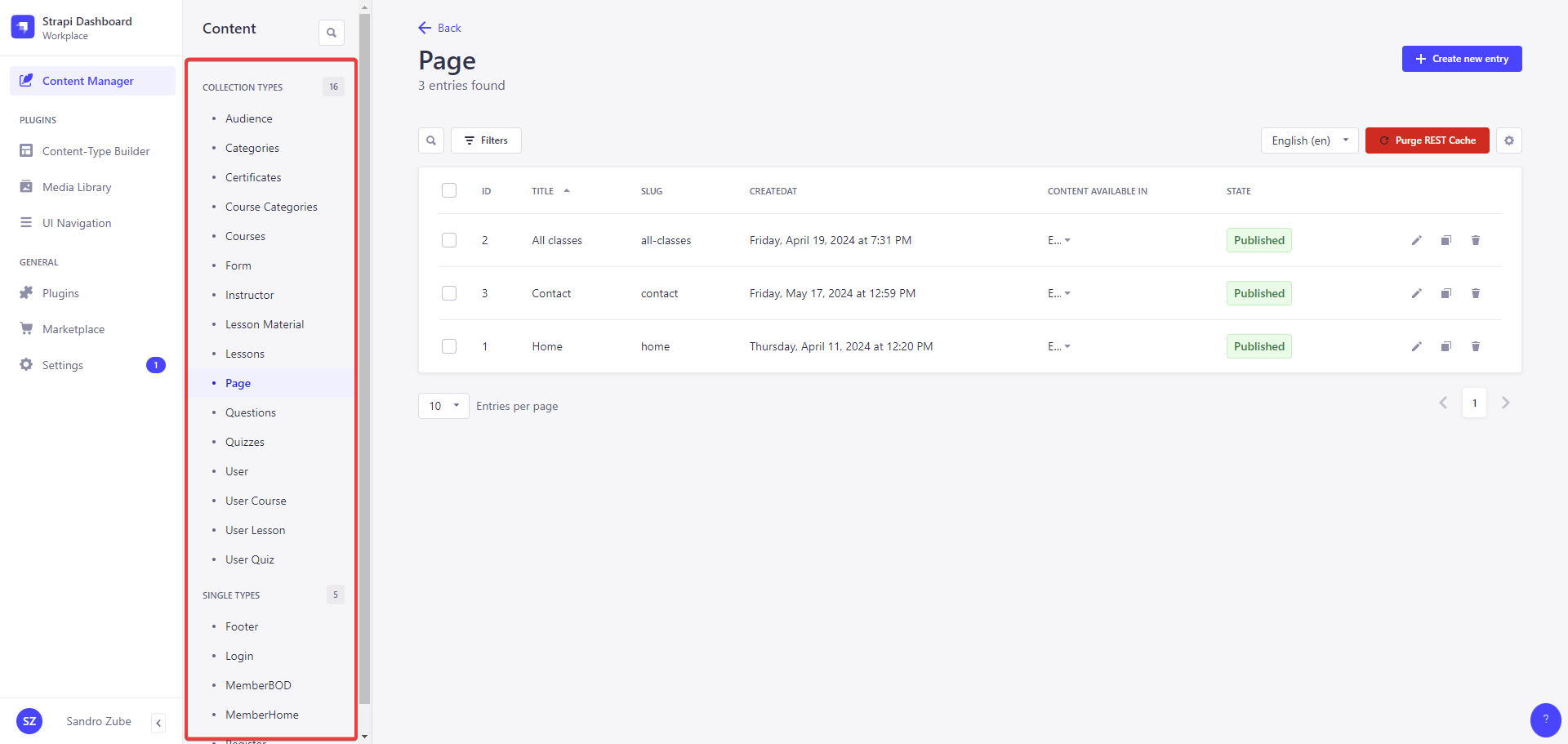
The Content Manager is accessible from Content icon Content Manager in the main navigation, which opens a sub navigation displaying 2 categories: Collection types and Single types. Each category contains the available collection and single content-types which were created beforehand using the Content-type Builder.
In some content types, for some fields setting or updating is restricted to avoid confusion or system issues when they would be changed, but are not supposed to. You can also be confident in these cases that nothing actually breaks or can break.
TIP
Click the search icon in the sub navigation to use a text search and find one of your content-types more quickly!
Categories
Although the name would imply, that this is an actual category, this is more of a tag. You can create categories and then assign them to courses. They then will show as Classification on the Course Overview information. 
Certificates
You are able to create and manage multiple certificates and set specific ones to courses. They will be used as a base to generate A PDF upon completion of a course. To create such base, there is a powerful PDF builder UI that offers multiple options for you to design such a PDF base template.
PDF Template Builder
This designer provides multiple types to layout the template via drag & drop. It will give you an accurate view of the certificate that gets generated upon course completions. 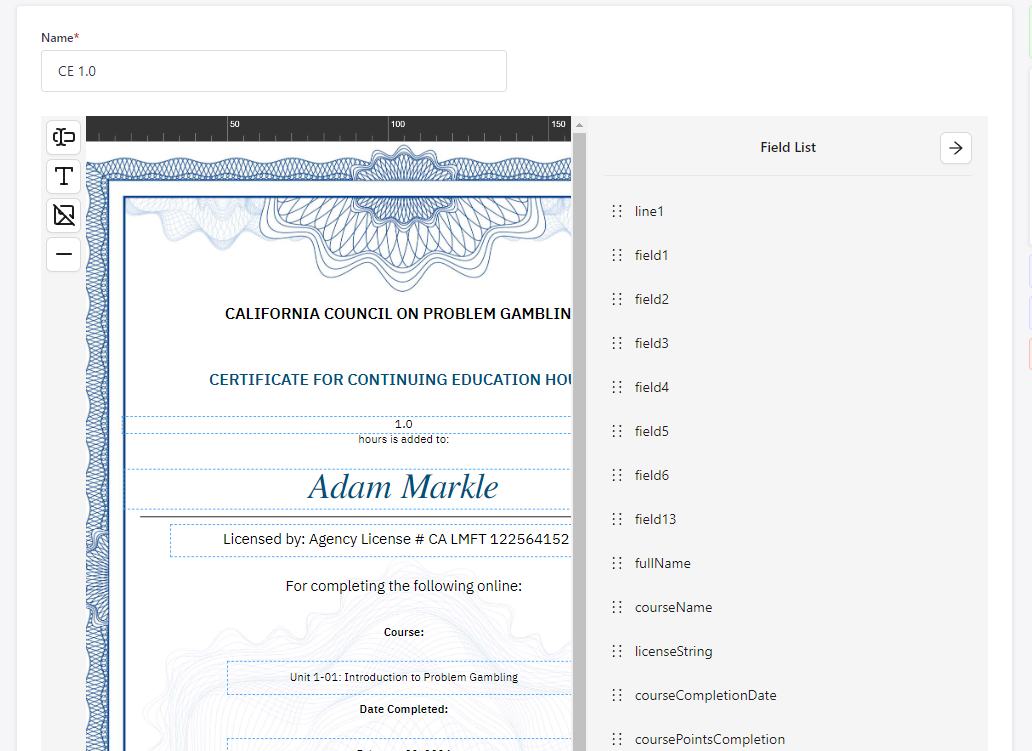
Text
You can add texts, that will be "overwritten" with real and dynamic values upon certificate creation. To better differentiate "dynamic" texts like these and read-only ones, the dynamic ones have a blue outline around them.
While you can set a placeholder text to give you a better picture on how your certificate will look in the end, the values are substituted depending on the Name you gave the text element. A full list of the substitution possibilities will be given here:
| Name | Info |
|---|---|
| courseCompletionDate | Date when the course was completed in the following format: May 23, 2024 |
| courseName | The name of the course. Unit 1-01: Introduction to Problem Gambling |
| coursePointsCompletion | CE points given for the specific course. 1.0 |
| fullName | First and lastname of the user who completed this course. Tonya Williams |
| licenseString | An automatically generated string based on the user's license in the following format: Licensed by: AGENCY License #NUMBER |
| licenseString2 | An automatically generated string based on the user's second license in the following format: Licensed by: AGENCY2 License #NUMBER2 |
ReadOnly Text
It works similar as normal Texts, but these will NOT be overwritten or substituted and are static. What you see is what you will get on certificate creation.
Image
An image you can resize and drag around to your liking.
Line
A simple line you can configure and style via various options.
TIP
Use your arrow keys to move around elements in 1px decrements or hold the Shift key as well to move it around in 0.1px decrements.
Course Categories
These are actual categories you can create and assign courses to. They have a component so you can render these on the Pages content-type.
Courses
You can create and modify courses here. Set a name, assign lessons / quizzes, set the access period, price and more!
Courses Availability
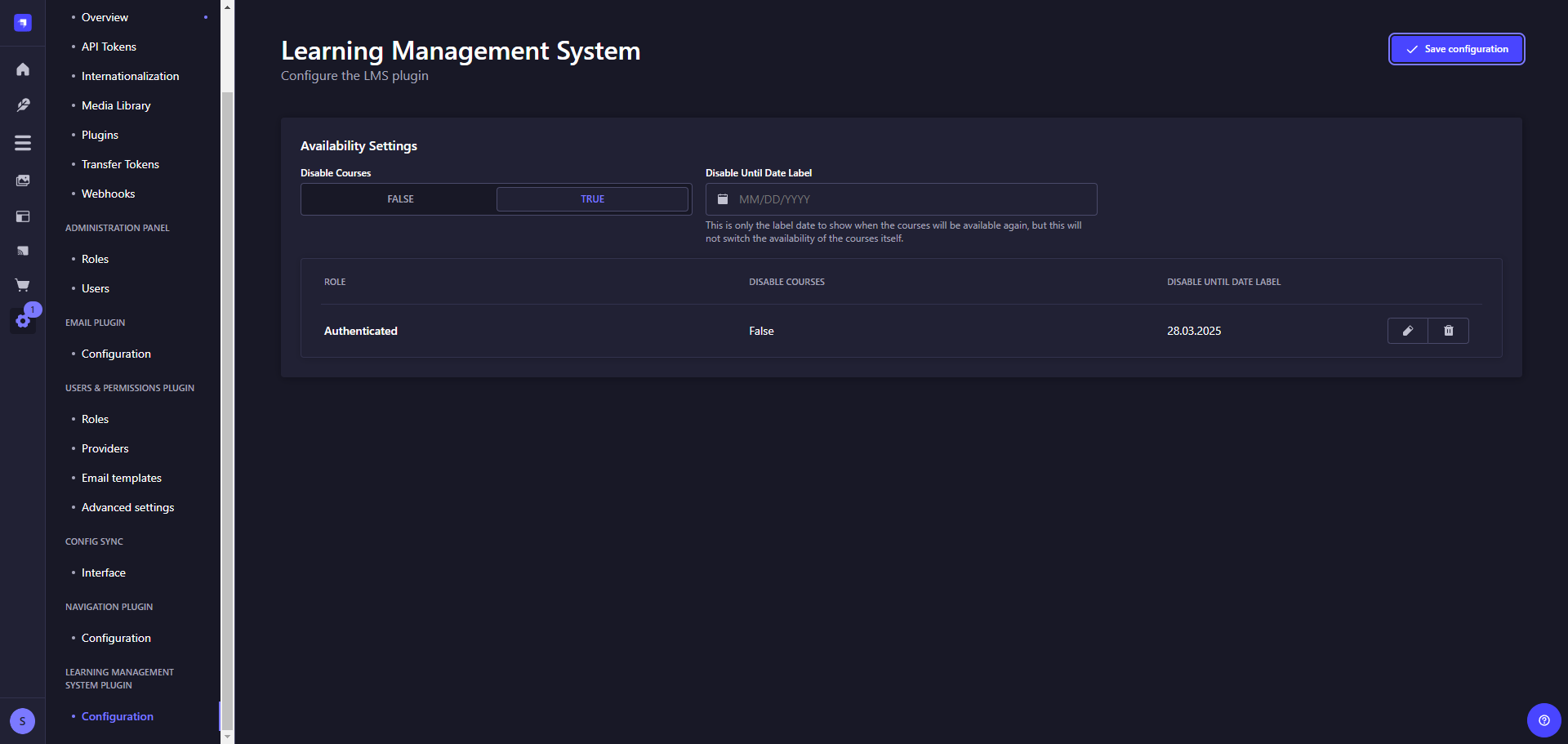
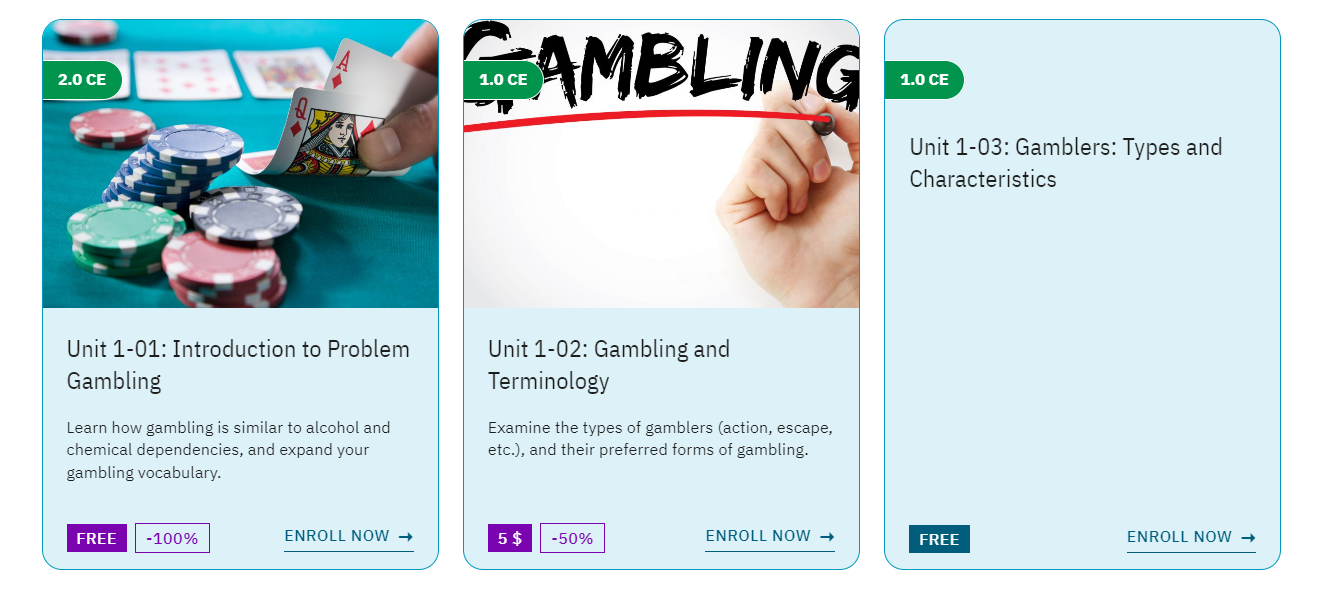
Availability will determine if a course is hidden or just not available for the users. There are 3 levels / priorities regarding this.
Levels
Settings can be found either on a specific course directly (first priority), in a specific User Course Group (third priority) or in Settings -> LMS -> Configuration -> Availability Settings for the fourth and fifth priority.
- Within a specific course, there is an
Availableproperty. If this is unchecked, the course will be hidden and is also NOT available for all your users. - Within a specific course, there is a
Rolesproperty. Only these roles can access this specific course. If this select is empty all roles can access the course to this point, unless availability is denied in later levels. - In a User Course Group, you can overwrite availability of a specific or all courses as well. This takes precedence over role based availability settings of later levels.
- In the Availability Settings, you are able to set course availability for a specific role. This takes precedence over the global switch for users with that specific role.
- In the Availability Settings, you are able to globally mark courses as unavailable.
Properties
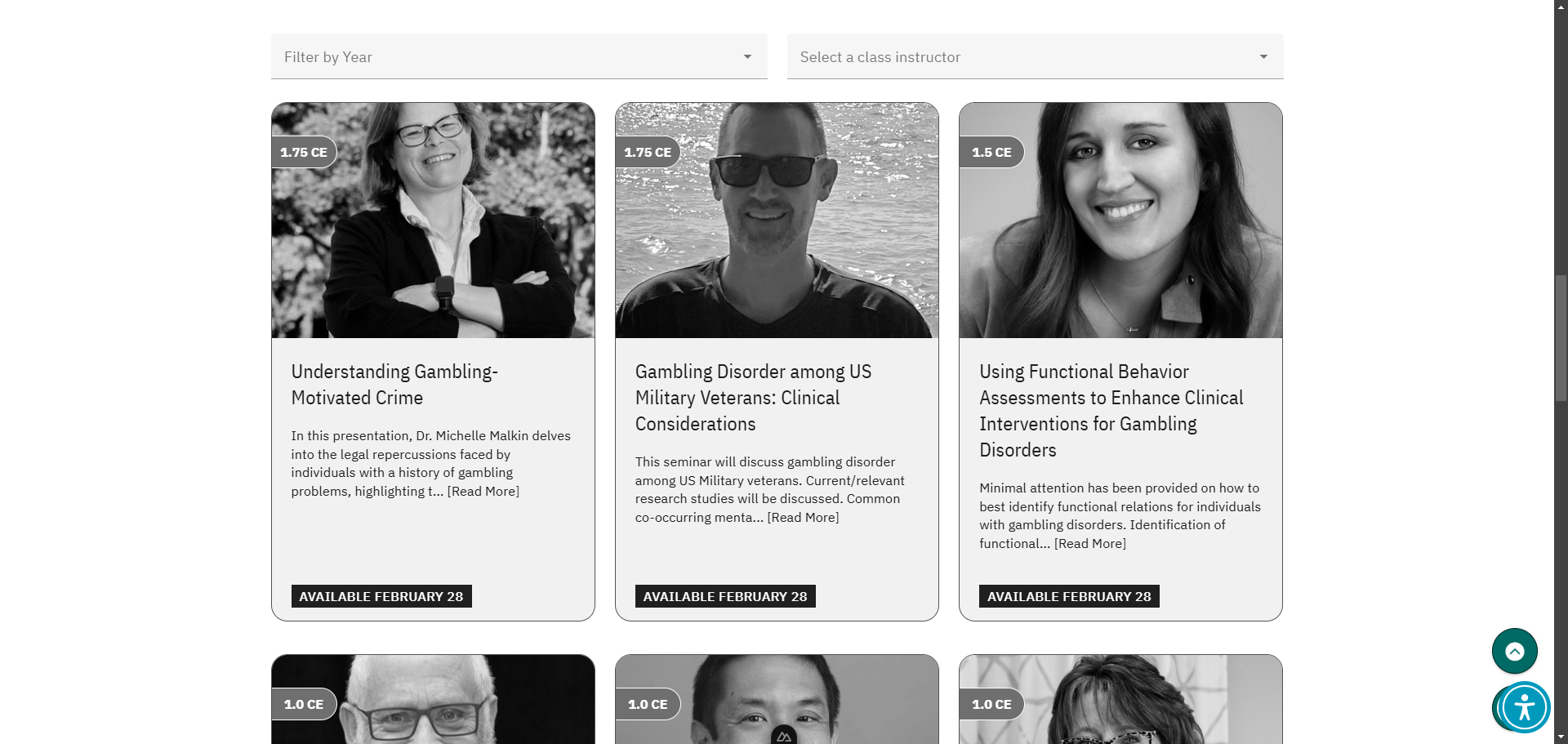
Managing course availability is done via two properties. Disable Coursesand Disable Until Date Label.
Disable Courses
This is a simple switch. If it is enabled, all courses will be unavailable, however, they will still be visible within the UI in an "unavailable" state.
Disable Until Date Label
This influences the label that is shown within the frontend. If this is not provided it would just show Unavailablewithin the frontend for every course. If you set a specific date, it will show the exact date when it becomes available again (see screenshot above).
WARNING
This option will NOT switch the Disabled Courses property automatically on that specific date. This is merely a display label functionality.
Summary
This will give you powerful ways to decide which of your users have access to the courses. For example: you could globally disable courses, but then create a role-specific exception so users with that specific role would still have access to courses. You could also hide specific courses entirely from the users.
Instructor
An instructor is someone who created a course, thus a course can be assigned to an instructor. This is important, since it is possible to filter by instructor in the course overview. You can also assign an instructor as user.
Lessons
Lessons can be assigned to courses and encapsulate a part of the course where users may need to watch a video to complete or can read information/materials.
Materials
Materials can be used in many situations. They are content blocks, that can be assigned to lessons to preface information to the user or in quizzes to forward information regarding it to the user.
Questions
Can be assigned to quizzes. Questions contain answers, where you can set which answer is the correct one.
WARNING
The question type multiple is currently not implemented.
Quizzes
Quizzes can be assigned to courses and encapsulate a part of the course where users need to pass a quiz or, depending on the type, can also be used for evaluations.
User Course
When a user enrolls into a course, a new User Course will be added for it to encapsulate information about it. You can also extend expired courses here and see lots of information about the completion state of lessons and quizzes.
User Course Credits
Here you can provide free credit hours for continuing education for users. One credit = 1 hour of continuing education or $10. Users may receive credits for a variety of reasons, including as benefits of CalPG programs.
A 1.5 hour class uses 1.5 credits. If a user is short on credits, i.e. they have 1 credit for a 1.5 hour class, it can be substituted with money. In a case where the course costs $20, they would pay 1 credit and $6.67. The user paid 1 of 1.5 credits. Which leaves 0.5 (33%) of the cost. 33% of $20 is roughly $6.67. This is displayed in the UI as well and the user can decide if they would like to pay the full amount with money or mixed.
Credits are tied to the CE. Meaning that if you increase the price of a course, it will not cost more to enroll with credits. 1 credit equals 1 CE always.
If a user is both in a user course group with free classes, and has credits, the group takes precedence. If the group is discounted classes, the user has the option to either pay the discounted rate with money or credits. The credits will also be discounted at the same rate.
INFO
Users will receive an email once you award them credits. They also receive a reminder in case credits are about to expire in 2 weeks.
User Course Groups
User Course groups have various functionality to group users and courses.
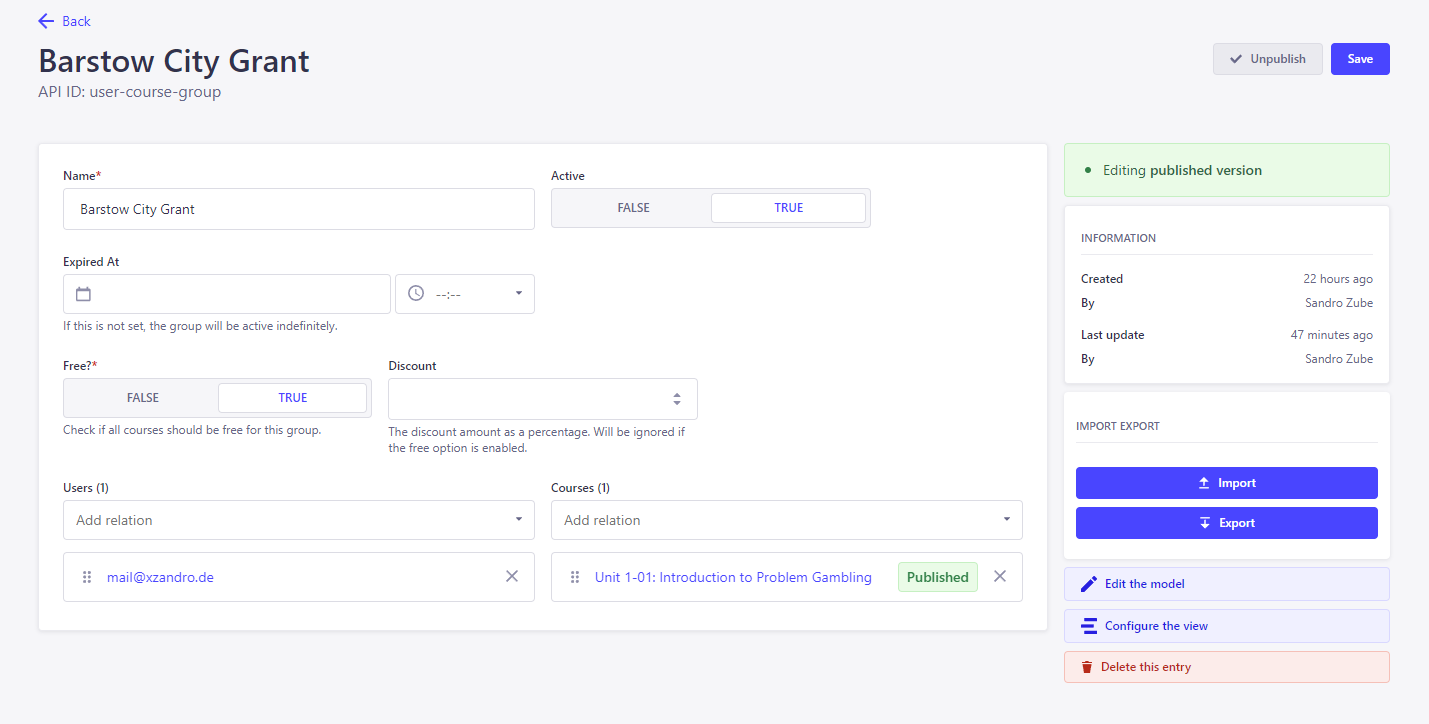
You can assign users and courses to them to then grant either temporary or indefinite discounts. You can also provide the respective courses for free.
If a user is in multiple groups that also include the same course, the biggest discount will be taken automatically. Meaning, if the user is in one group where the discount is 50% for a specific course and another one has 70% discount for that course, the 70% discount will be chosen. These discounted prices will be shown to the user on the website as well.
If you set an expired date, the system will check every hour and if necessary will set that group to not active. Discounts of non-active groups will not apply. If you do not set an expired date, the group will be active indefinitely.
TIP
You can also assign a course group on the user side directly.
User course groups can also be used to overwrite the availability of a specific course or all courses.
User Lesson
User Lessons are assigned to User Courses automatically. They contain information about the lesson's progress and save information like the video progression.
User Quiz
User Quizzes are assigned to user Courses automatically. Similar to User Lessons, they hold information about the status of the quiz's progress. You can also see and reset/remove quiz attempts here.
Video Group
The purpose of video groups are exactly that, group videos and the main advantage is that you can set watch frequencies for these groups. Watch frequency defines how often videos within a group need to be watched. If a user watched a video within that watch frequency, they can skip course lessons. If not, watching these videos are mandatory to progress the course.
How to create a Video Group
To create a video group, you need to navigate to the video group content type and click on Create. You can define a name and the watch frequency.
Assign a Video Group to a lesson video
Go to the Lessons content type. Click on or create a lesson. Within that lesson you can add a video to the lesson and furthermore set a video group to said video.
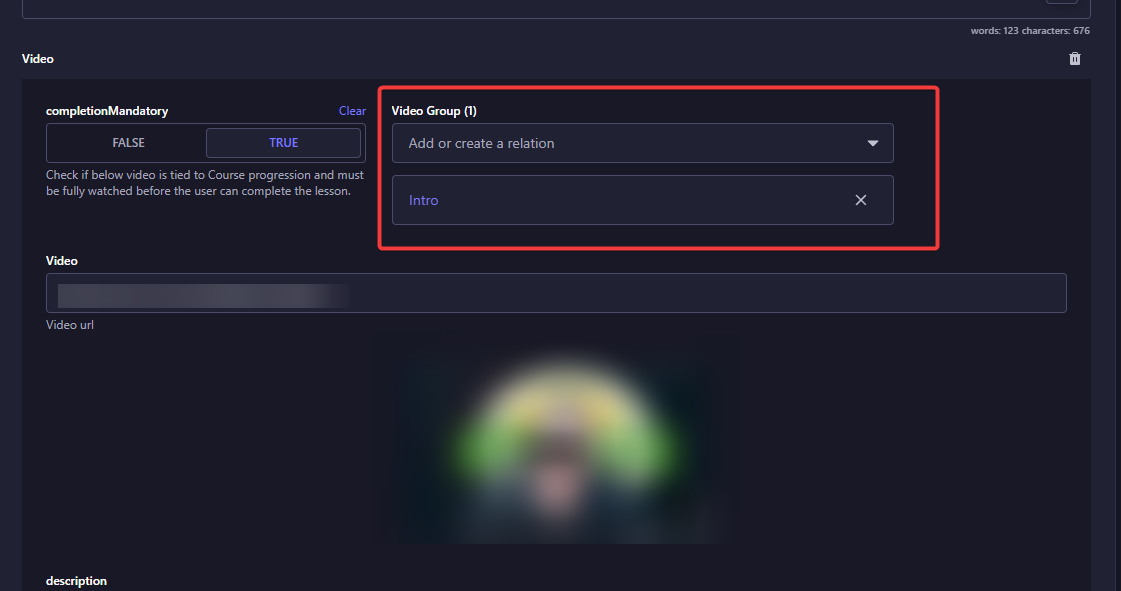
After that the system will always check if the user already watched a video of that group within the set time frame and either makes the lesson video mandatory to watch or not.